
Quick answer: An Arabic keyboard is any keyboard set to the Arabic layout – most commonly Arabic (101), where the letters ض ص ث ق sit on the Q W E R keys. To type Arabic, add Arabic as an input language (Windows: Settings > Time & language > Language & region; Mac: System Settings > Keyboard > Input Sources) and switch with Windows + Space or Alt + Shift on Windows, or Control + Space on a Mac. For daily use in the UAE, a keyboard with printed Arabic and English keys – like the KGaming Space Star C-K29 (AED 204) or the KGaming Blackshadow (AED 119) – is easier than stickers.
Key takeaways
- Arabic (101) is the standard Arabic keyboard layout in the UAE and GCC, and it matches the Arabic letters printed on most local keyboards.
- You don’t need a special keyboard to type Arabic – any keyboard works once you add Arabic in Windows, macOS, iPhone or Android settings.
- Printed Arabic/English keycaps beat stickers: they don’t peel, and PBT dye-sublimated legends never fade.
- Switch languages fast: Windows + Space or Alt + Shift on Windows, Control + Space on Mac, the globe key on phones.
- At YaKaram, Arabic/English keyboards start from AED 83.05 (Dell combo) and AED 119 (mechanical), with Cash on Delivery across all 7 emirates.
“Arabic keyboard” is one of the most searched tech phrases in the UAE – more than 12,000 searches a month, and over 8,000 more in Saudi Arabia. Some people want to type Arabic on a laptop they bought abroad, some need an Arabic and English keyboard for the office, and students learning Arabic want to understand the Arabic keyboard layout. This guide covers all three: how the layout works, how to set it up on any device in under two minutes, and which Arabic/English keyboards are worth buying in Dubai and across the UAE.
What is an Arabic keyboard?
An Arabic keyboard is a keyboard layout that maps the 28 letters of the Arabic alphabet – plus hamza forms, tā’ marbūṭa and lām-alif – onto the keys of a standard computer keyboard. It is not a different piece of hardware: the same physical keyboard types English or Arabic depending on which input language your computer or phone is using.
In the UAE, most keyboards sold in shops have dual legends: the English letter in one corner and the Arabic letter in another. These follow the Arabic (101) layout, which is the default Arabic keyboard in Windows and is also used, with small differences, by the “Arabic – PC” input source on Mac. Windows also offers Arabic (102) and Arabic (102) AZERTY layouts, but they are rarely used in the Gulf.
Arabic is written right to left, and letters change shape depending on their position in a word. You don’t have to worry about this – you type the basic letter and the software joins it automatically.
Arabic keyboard layout: English to Arabic key map
Here is where each Arabic letter sits on the standard Arabic (101) layout. Use it as an English to Arabic keyboard reference if your keys only have English letters.
| Row | English key → Arabic letter (Arabic 101) |
|---|---|
| Top row | Q ض W ص E ث R ق T ف Y غ U ع I ه O خ P ح [ ج ] د |
| Home row | A ش S س D ي F ب G ل H ا J ت K ن L م ; ك ‘ ط |
| Bottom row | Z ئ X ء C ؤ V ر B لا N ى M ة , و . ز / ظ |
| Top-left | ` ذ |
Tips for learning it: the most common Arabic letters – ا (H), ل (G), ي (D), م (L), ن (K) and ت (J) – are on the home row, so touch-typists can learn the layout quickly. Hold Shift to reach short vowels (ḥarakāt) such as fatḥa, ḍamma and kasra, and alif forms such as أ and إ.
How to add an Arabic keyboard on Windows 11
- Press Windows + I to open Settings.
- Go to Time & language > Language & region.
- Click Add a language, search for Arabic, choose a region such as Arabic (United Arab Emirates) or Arabic (Saudi Arabia), then click Next > Install.
- Click the three dots next to Arabic > Language options and check that the keyboard is Arabic (101). Use Add a keyboard to choose a different Arabic layout if you need one.
- Switch between English and Arabic with Windows + Space, Left Alt + Shift, or by clicking ENG/ARA next to the clock on the taskbar.
On Windows 10 the steps are the same, under Settings > Time & Language > Language.
How to add an Arabic keyboard on Mac
- Open the Apple menu > System Settings > Keyboard.
- Under Text Input, click Edit next to Input Sources, then click +.
- Choose Arabic and pick a layout:
- Arabic – PC – matches the Arabic letters printed on most UAE keyboards (Windows-style).
- Arabic – Apple’s own Arabic layout.
- Arabic – QWERTY – phonetic layout where Arabic letters sit on similar-sounding English keys (for example, ب on B), handy for learners.
- Click Add, then switch with Control + Space, the globe (fn) key, or the input menu in the menu bar.
Arabic keyboard on iPhone and Android
iPhone and iPad: go to Settings > General > Keyboard > Keyboards > Add New Keyboard and choose Arabic. Tap the globe key on the keyboard to switch languages.
Android (Gboard): open the Gboard settings, then go to Languages > Add keyboard and pick Arabic. Long-press or tap the globe key, or swipe the space bar, to switch.
Both systems can also connect to a Bluetooth Arabic/English keyboard – tri-mode keyboards like the KGaming Echo Forge let you jump between a laptop, tablet and phone at the press of a key.
Shortcuts to switch between Arabic and English
| Device | Switch language | Right-to-left text |
|---|---|---|
| Windows 10 / 11 | Windows + Space or Left Alt + Shift | Ctrl + Right Shift (in Word, Notepad and most text boxes) |
| Mac | Control + Space or globe (fn) key | Set paragraph direction in Pages / Word |
| iPhone / iPad | Globe key on the keyboard | Automatic |
| Android | Globe key or swipe space bar | Automatic |
Arabic keyboard for laptops: stickers vs printed keys vs external keyboard
Bought a laptop in the US or Europe and need an Arabic keyboard for your laptop? You have three options:
- Arabic keyboard stickers – the cheapest fix, but they peel, shift and wear off within months, especially in hot weather.
- Typing from memory – free, and possible with the key map above, but slow unless you already touch-type in Arabic.
- An external Arabic and English keyboard – the most comfortable option for long work sessions. A compact wireless model fits in a laptop bag and works with your phone and tablet too.
If you type a lot, choose a keyboard with PBT dye-sublimated or laser-etched legends. Dye-sublimated letters are part of the plastic, so the Arabic and English characters stay sharp for years instead of rubbing off like printed ABS keycaps.
Best Arabic and English keyboards in the UAE (2026)
We chose these six keyboards from the YaKaram range because they have Arabic/English legends and suit different budgets and desks.
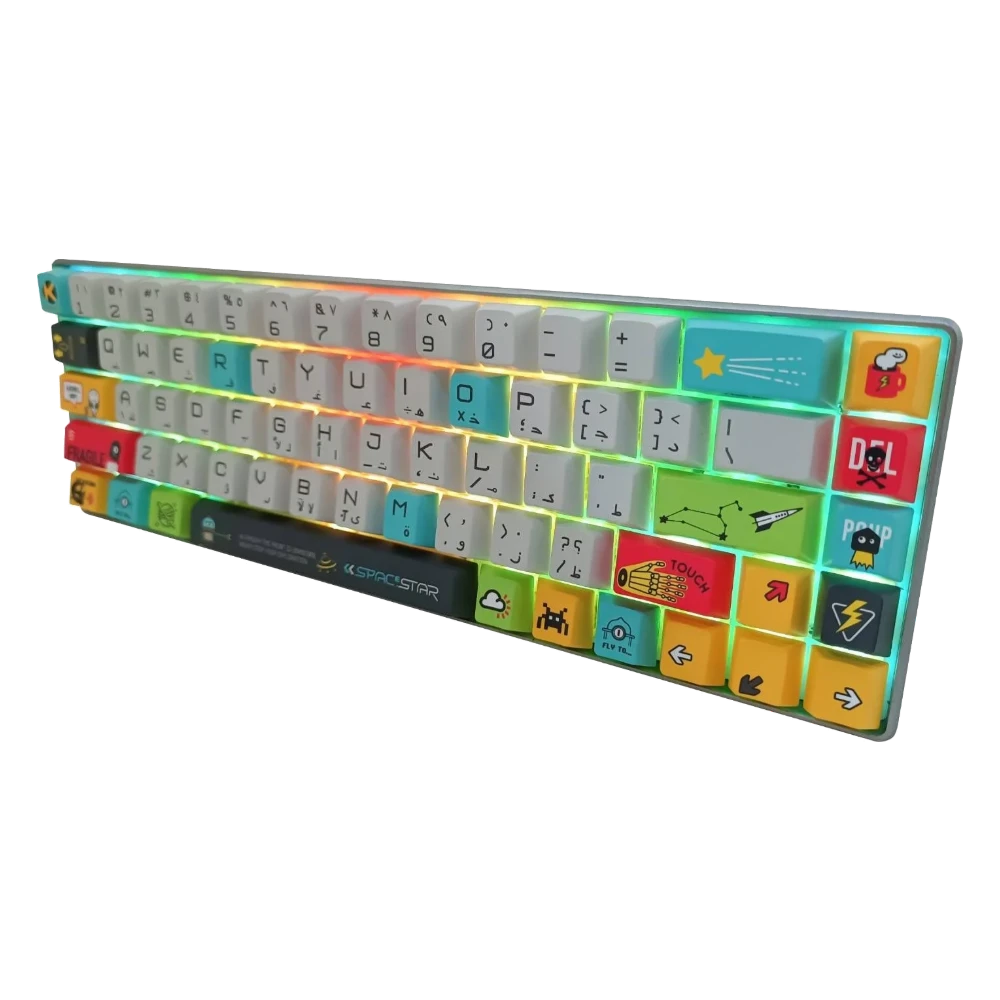 Best for typing
1. KGaming Space Star C-K29 68-Key Mechanical Keyboard
Best for: heavy Arabic and English typing that should still look good in 5 years
The Space Star has PBT keycaps with dye-sublimated Arabic and English legends, so the letters never fade. It keeps the arrow keys in a compact 68-key body and connects by USB-C, Bluetooth or 2.4 GHz.
- Fade-proof PBT dye-sub legends
- Tri-mode, 2000 mAh battery
- Hot-swap switches
- No number pad
- Colourful retro style isn’t for every office
Specs: 68 keys · PBT · RGB 19 modes · 308 x 100 x 38 mm
 Best value
2. KGaming Blackshadow Tri-Mode 68% Mechanical Keyboard
Best for: students and gamers on a budget
A matte-black 68% mechanical keyboard with Arabic/English keys, tri-mode wireless and Red or Blue hot-swap switches – the lowest-priced wireless mechanical option in our range.
- Great price
- Tri-mode wireless
- Arrow keys included
- No number pad
- Smaller 1500 mAh battery
Specs: 68 keys · RGB · Red or Blue switches
 Most portable
3. KGaming Echo Forge 60% Tri-Mode Keyboard
Best for: carrying with a laptop or tablet
At 293 mm wide, the Echo Forge is the smallest keyboard here. It has 61 keys, Arabic/English legends, Bluetooth and 2.4 GHz wireless, and comes in black or a translucent white edition.
- Very compact
- Black or white versions
- Hot-swap switches
- No dedicated arrow keys
- 60% layout takes practice
Specs: 61 keys · 1300 mAh · RGB 20 modes · 293 x 103 x 38 mm
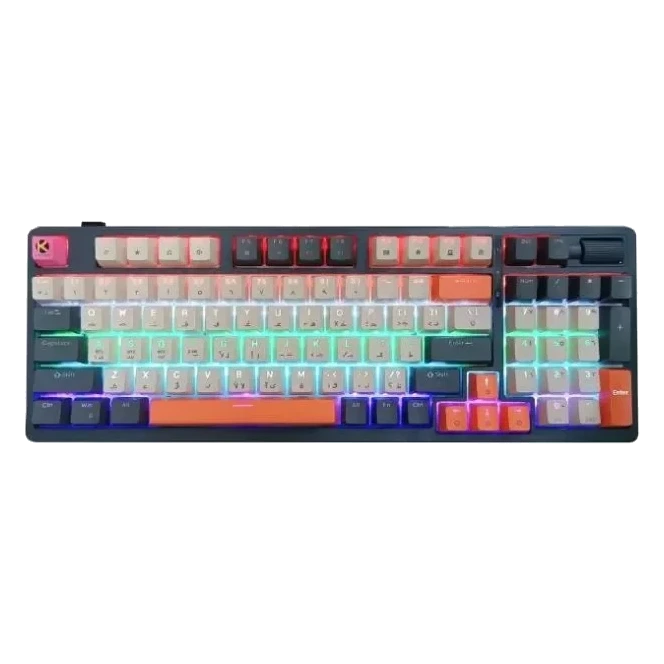 Best with number pad
4. KGaming Iron Hawk Tri-Mode 96-Key Keyboard
Best for: accountants, data entry and anyone who needs numbers
A near full-size 96-key mechanical keyboard with a number pad, Arabic/English legends and tri-mode connectivity in a space-saving body.
- Number pad
- Tri-mode wireless
- Compact for a full layout
- Wider than 68% boards
- Translucent style not for everyone
Specs: 96 keys · RGB · tri-mode
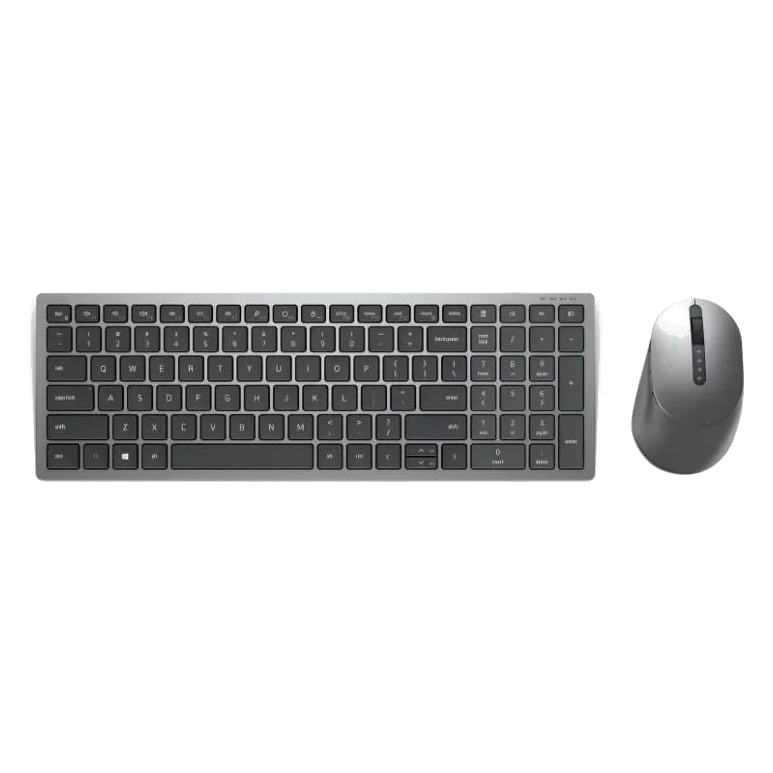 Best for the office
5. Dell KM7120W Multi-Device Wireless Keyboard & Mouse
Best for: quiet offices and home workstations
A full-size Arabic/English membrane keyboard with number pad plus a matching mouse. It pairs with up to three devices (2.4 GHz + two Bluetooth) and runs for months on batteries.
- Quiet, full-size layout
- Mouse included
- Up to 3 devices
- Not mechanical
- No backlight
Specs: Full size · 2.4 GHz + Bluetooth · battery powered
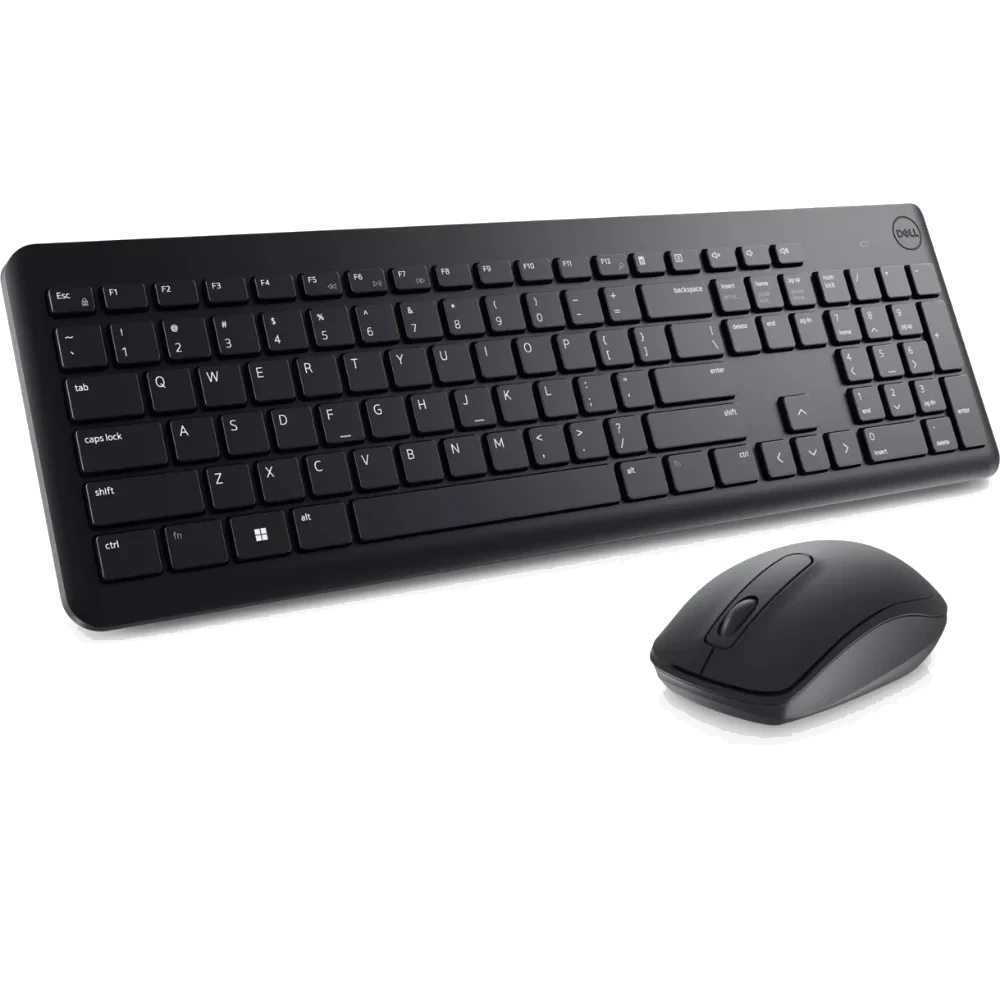 Budget pick
6. Dell KM3322W Wireless Keyboard & Mouse Combo
Best for: schools, offices and bulk orders
A simple, reliable wireless keyboard and mouse with an Arabic/English layout option and long battery life – the lowest-cost way to type in both languages.
- Lowest price
- Long battery life
- Mouse included
- Basic membrane keys
- No Bluetooth
Specs: Full size · 2.4 GHz · English or Arabic/English layout
Mechanical or membrane for Arabic typing?
Mechanical keyboards (the KGaming models above) have an individual switch under every key, so each letter registers precisely and the keyboard lasts for tens of millions of presses – ideal for long typing sessions and gaming. Membrane keyboards (the Dell combos) are quieter and cheaper, which suits shared offices. Both type Arabic in exactly the same way. For more detail on switches and sizes, read our best gaming keyboards in the UAE guide.
Common Arabic typing problems and fixes
- My keyboard suddenly types Arabic. You probably pressed Alt + Shift or Windows + Space by accident. Press it again, or click ENG/ARA on the taskbar.
- The letters don’t match my keys. Check that the layout is Arabic (101) on Windows or Arabic – PC on Mac. The Mac “Arabic” and “Arabic – QWERTY” layouts place letters differently.
- Numbers appear as ١٢٣ instead of 123. Change the digit setting in your language or region options, or in the app (Word has a “Numeral” option under Advanced settings).
- Text runs in the wrong direction. In Windows apps press Ctrl + Right Shift for right-to-left, or use the RTL paragraph button in Word or Google Docs.
- Bluetooth keyboard types English only on iPhone. Add the Arabic keyboard in iOS settings, then switch with Control + Space or the globe key on the external keyboard.
Our verdict
You can type Arabic on any computer or phone by adding the Arabic (101) layout and learning one switching shortcut. If you type in both languages every day, a keyboard with printed Arabic and English legends saves time and frustration: the KGaming Space Star C-K29 is our top pick for typists, the Blackshadow is the best value, and the Dell KM7120W suits quiet offices.
Arabic keyboard FAQs
What is the standard Arabic keyboard layout?
The standard layout is Arabic (101). It is the default Arabic keyboard in Windows and matches the Arabic letters printed on most keyboards sold in the UAE and GCC.
How do I switch between Arabic and English on my keyboard?
On Windows press Windows + Space or Left Alt + Shift. On a Mac press Control + Space or the globe key. On iPhone and Android tap the globe key on the on-screen keyboard.
Can I type Arabic on an English-only keyboard?
Yes. Add Arabic as an input language and the same keys will type Arabic letters. Use the English to Arabic key map in this guide or Arabic keyboard stickers until you learn the layout.
Which Arabic layout should I choose on a Mac?
Choose “Arabic – PC” if your keyboard has Arabic letters printed in the Windows (101) positions. Choose “Arabic – QWERTY” if you prefer a phonetic layout where Arabic letters sit on similar-sounding English keys.
Are Arabic keyboard stickers a good idea?
They are a cheap short-term fix, but they peel and fade, especially in UAE heat. A keyboard with printed or dye-sublimated Arabic/English keycaps lasts much longer.
What is the best Arabic and English keyboard in the UAE?
For typing, the KGaming Space Star C-K29 (AED 204) has fade-proof PBT dye-sub Arabic/English keys. For value, the KGaming Blackshadow (AED 119). For offices, the Dell KM7120W combo (AED 236.35).
Can I buy an Arabic keyboard with Cash on Delivery in Dubai?
Yes. YaKaram Electronics delivers Arabic/English keyboards to Dubai, Abu Dhabi, Sharjah and all emirates with Cash on Delivery, free delivery over AED 400 and 14-day returns.
Shop Arabic & English keyboards
Order online or on WhatsApp and pay when it arrives – delivery across all 7 emirates.
Sources: Microsoft Windows and Apple macOS language settings; KGaming and Dell product specifications. Search data: Mangools KWFinder (UAE and Saudi Arabia), November 2026. Prices checked at YaKaram on 8 November 2026.